An interactive visual sketch can make a computational artwork more revealing. A visitor changes a parameter and sees how the geometry responds, discovering the rule through direct exploration. The interaction can also weaken the experience if the page begins with a dense bank of controls, unfamiliar labels and a composition that has little character until the visitor configures it. Designing a good sketch requires treating the default image, the controls, the drawing function and the way the browser displays them as related parts of the work. Each control should expose a meaningful artistic decision.
Start with an artwork that stands on its own
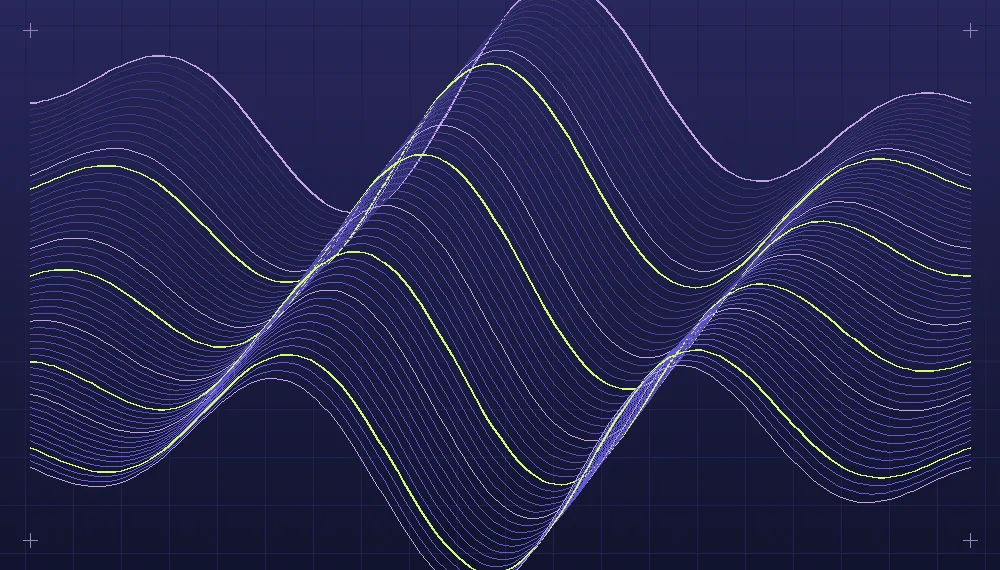
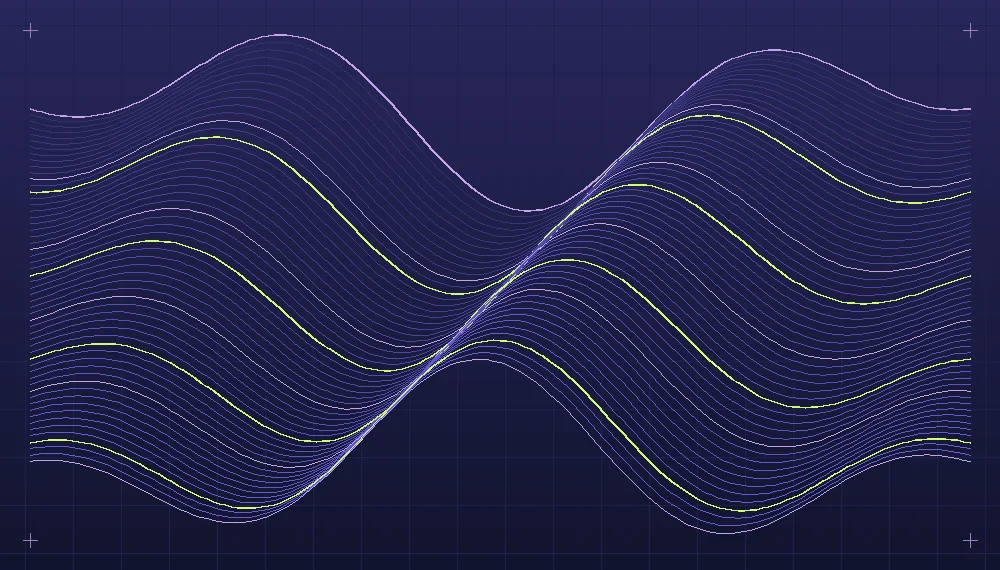
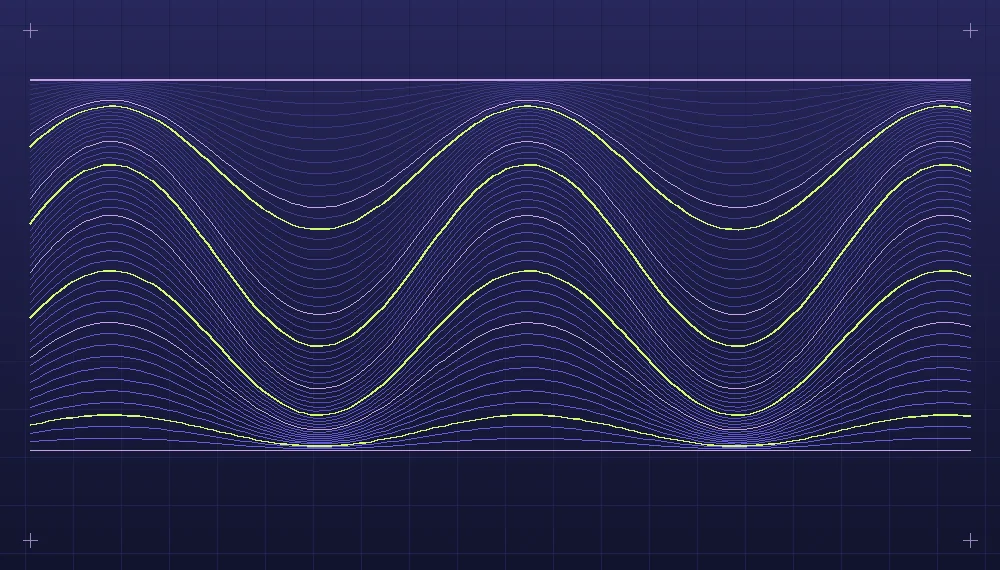
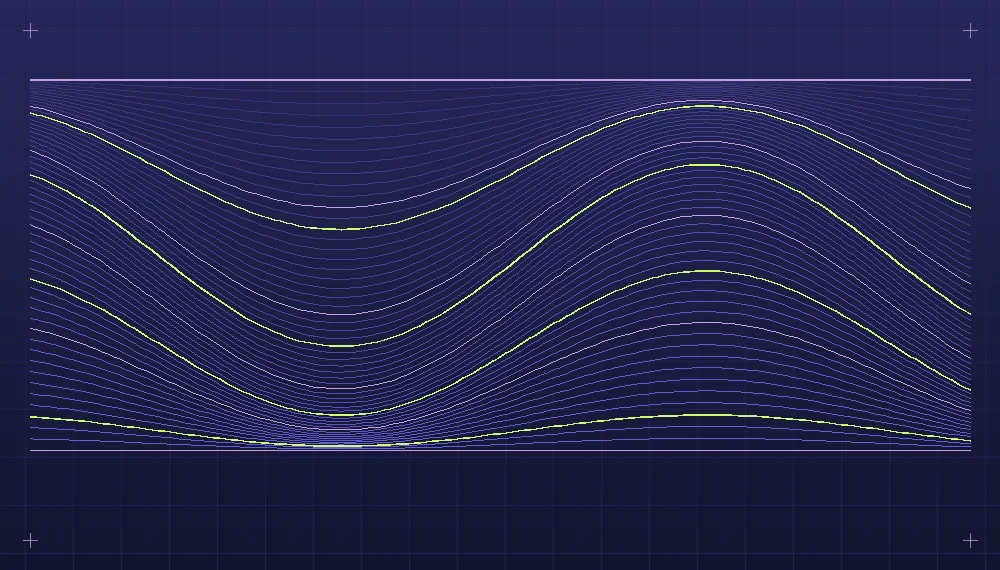
Develop one coherent default composition before introducing any interface. Think of a sketch with a field of curves that bend around a central opening. Choose dimensions, frame, density and palette to make the relationship clear in a single still image. The visitor should encounter that composition immediately rather than a blank surface accompanied by instructions. It establishes the subject of the interaction and gives the viewer an example against which subsequent states can be understood. If the sketch is embedded within an article or portfolio, this default image may be sufficient for someone who prefers not to interact at all.
Decide what the interaction is supposed to demonstrate. In the curve example, the interesting questions might concern how density affects line crossings and how the displacement amplitude changes the visible opening. From many numerical parameters inside the program, those two have an understandable visual purpose. An internal sampling interval, coordinate offset or array length might affect the picture but does not necessarily belong in the public controls. Expose parameters in terms of artistic effect rather than simply mirroring every variable. The visitor needs a way to explore the work, not a general-purpose debugging panel.
Give controls names and limits that make sense
A slider labeled curve strength communicates more clearly than a variable name such as coefficient B, provided that the displayed result actually corresponds to the label. A density control can indicate whether it governs the number of marks or their approximate spacing. Where useful, display the current value together with the control. Use ranges determined by sensible outputs. A slider that accepts an enormous numerical range but produces unreadable geometry over most of it is misleading. Try the extremes and several intermediate values while building the control, and narrow the range when its outer states have little artistic meaning.
Not every control needs to be continuous. A small group of curated palette options may offer more useful possibilities than three separate color-channel controls. A handful of framing choices may communicate different compositions more clearly than unrestricted panning. If the sketch is intended as a study tool for experienced creative coders, broader controls can be justified, but the initial presentation should still be understandable. Consider an optional detail section for advanced settings that does not obscure the central image. A reset action should restore all the relevant values rather than leaving some hidden state changed.
Related reading: What makes a procedural image reproducible.
Keep state independent of rendering
Organize the sketch around an explicit state that holds the permitted parameter values. The drawing function reads that state and creates the geometry. The controls request a change to the state, and the renderer reflects the accepted values. Separating these concerns makes it easier to regenerate a specific composition, implement reset behavior and capture the current output without relying on the position of controls in the page. It also helps avoid situations where a label displays one value while the drawing responds to another. Test the drawing function with a few reference states before wiring the interface around it.
For a sketch that includes controlled randomness, retain the chosen seed as part of the state. A visitor adjusting curve strength probably expects to see how the same set of curves changes rather than a completely new random arrangement on every movement. Preserve the random structure during that adjustment. An explicit new variation action can select a different seed when the visitor wants another arrangement. If the sketch can export or share a configuration, keep a record of the values needed to reconstruct it. A simple visual study need not include such functionality, but the state structure makes adding it later considerably easier.
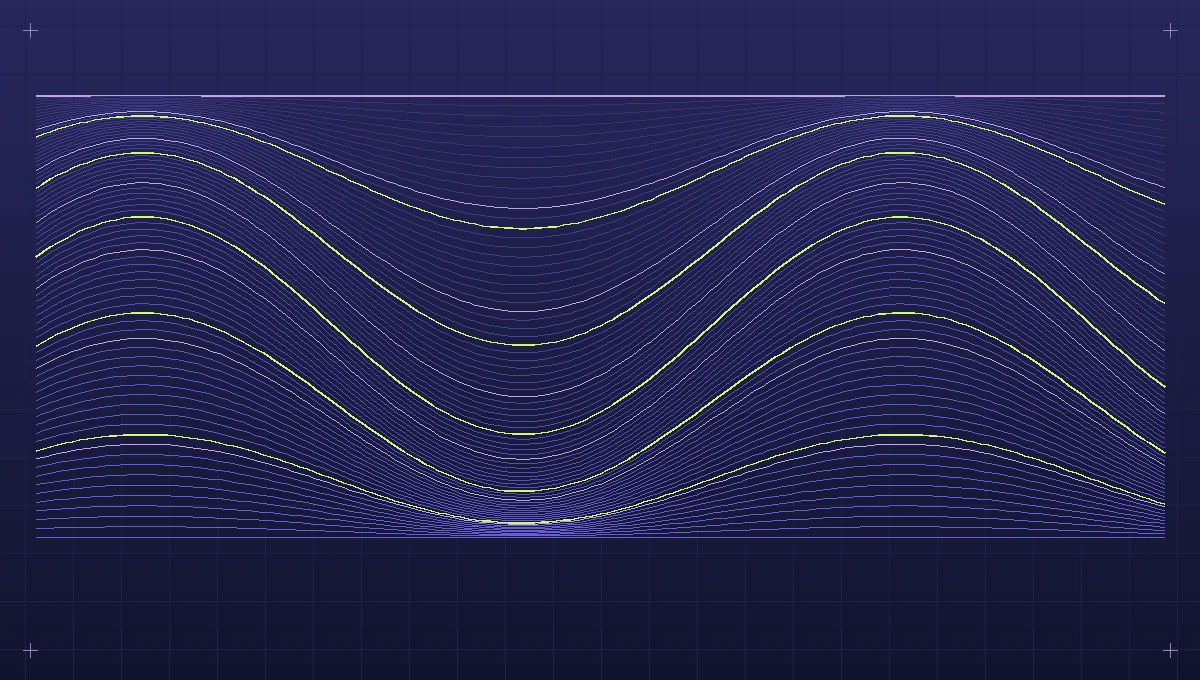
A two-control example
Begin with a drawing containing thirty-two curves, an envelope that confines bends near the middle and a dark restrained color palette. Add one density control that selects a reasonable number of curves and one bend control that scales their displacement. Render from the state each time either accepted value changes. Inspect the four combinations at the extremes: low and high density with low and high bend. A large number of highly curved lines may conceal the intended opening. Either establish limits that preserve the shape or use a meaningful relationship between the controls, making that behavior clear rather than allowing surprising invalid states.
Include a reset button returning to the original composition. Ask someone unfamiliar with the project to make the field more crowded, then reduce the bends, then recover the starting image. If they struggle to identify which control changes which feature, revise its label, placement or visible feedback. Evaluate the effect at small viewport sizes as well as on desktop. The artwork should remain large enough to understand, and the interaction controls should not cover the central region. A stacked layout below the drawing can be more useful at narrow widths than shrinking a complex two-column panel.
Respond efficiently and accessibly
Frequent input changes can require many redraws. Keep the rendering work appropriate to the device and complexity of the sketch, and avoid recalculating unrelated properties if they do not depend on the changed control. A lightweight preview while adjusting and a more detailed rendering after the value settles can be appropriate for a costly illustration, provided the visual feedback remains predictable. Test this behavior with a slower device or a large state rather than assuming fast development-machine performance represents every visitor's experience. Watch for lag that separates the visible result from the user's action.
Use ordinary labeled controls where they meet the sketch's needs. Confirm that a keyboard user can reach each one, understand its current value, adjust it and activate reset without relying on a pointer gesture. When interaction is the only way to reveal meaningful visual information, supply an explanation and a representative static image. For moving sketches, offer a reduced-motion presentation or a pause mechanism. The controls should remain usable in different text sizes and should not rely entirely on hue to distinguish their states.
The initial image should be available as part of the document when feasible, without waiting for the interactive drawing to initialize. A static fallback can occupy the same reserved area as the eventual sketch. Once the application is ready, it can replace or enhance that view without making the page jump or removing the essential artwork when execution fails.
Leave the visitor with a clear exploration
An interactive artwork succeeds when the visitor can make an intentional change, recognize its effect and connect the result to the central artistic idea. A short note describing the rule may deepen that discovery, but the sketch itself should reveal as much as possible through its structure. Resist the impulse to add another control merely because the program exposes another adjustable value. Preserve interesting configurations as separate study examples if they help explain the system. By keeping the default composition strong, the state understandable and the interface small, the sketch can serve both as an artwork and as a direct exploration of the code that shapes it.
Explore the implementation area: Artificial art and generative design.